Combining Layers in UMG
When creating a user interface we often come across situations, where we need to layer several visuals on top of each other. Imagine a list of elements, each element displays a unique icon, that is surrounded by a border.

There are multiple ways to achieve this, which all can have different advantages and disadvantages.
Combine background and icon in an image editor:
For a small set of items it can make sense to prepare all icons in advance in an image editor and bake the background into the image, especially if you know exactly how you want the UI to look.
It is easy to reuse in different UI elements, as you only need to setup one image, which will look the same no matter where it is.
But this approach quickly gets annoying if you need to iterate the visuals or have a big number of different elements. In addition it can be very difficult to change the colors of the layers independently at a later point.
Use separate images for background and icon and layer them on top of each other:
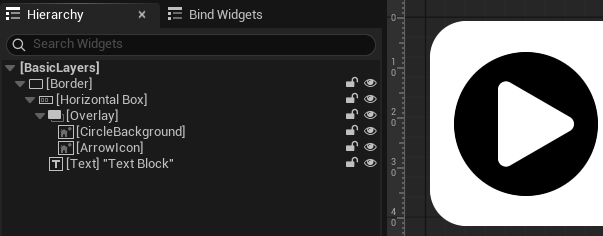
This approach allows for easier iteration in engine. You can independently change the background and icon. Changes to the background can be easily propagated to all elements without needing to touch each element individually.
We can easily switch out the icon for each element in the list and the separated background and foreground elements can be changed independently.

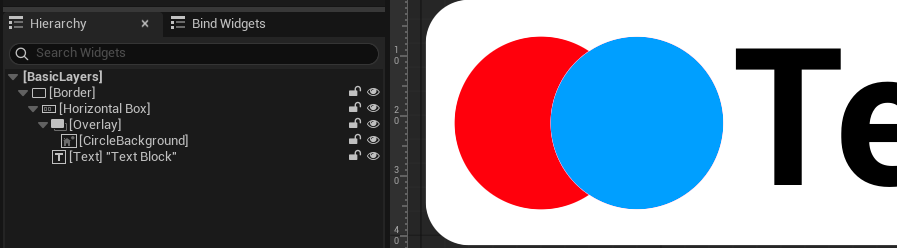
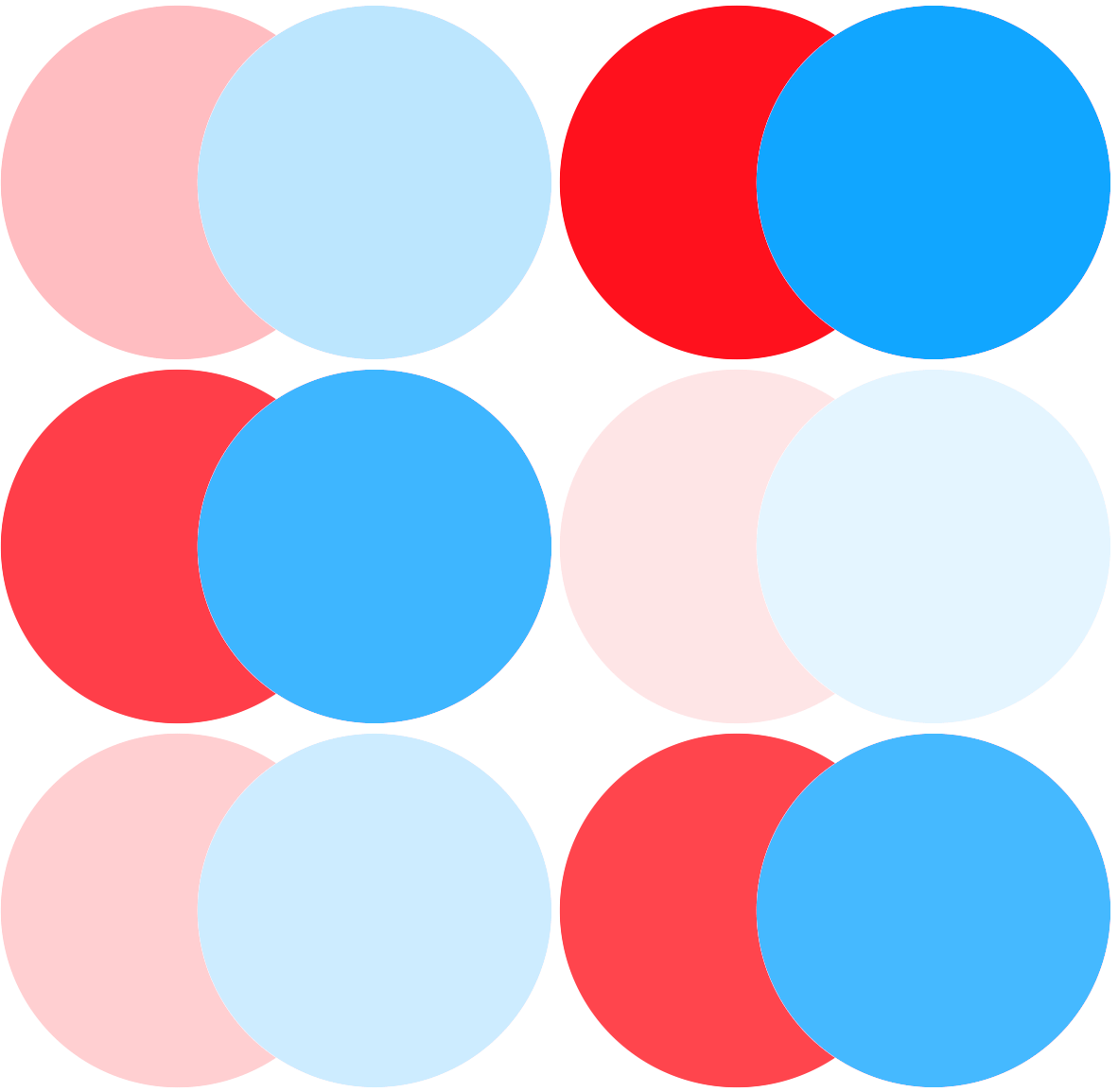
Layering the images in the Hierarchy is good enough in most cases, but color shifting issues can appear if you animate the opacity:
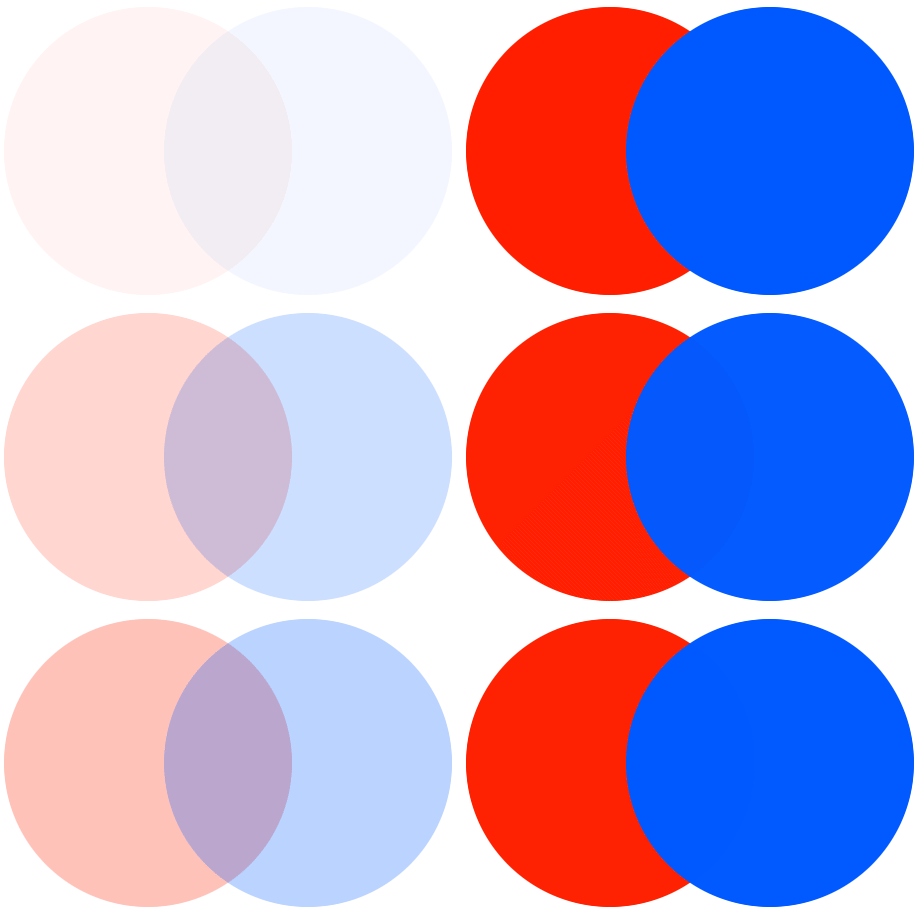
Sharing the same look in multiple UI elements is a bit more difficult here, than with the precombined images, as you need to separate the layout out into its own widget, or recreate the layout wherever you need it.
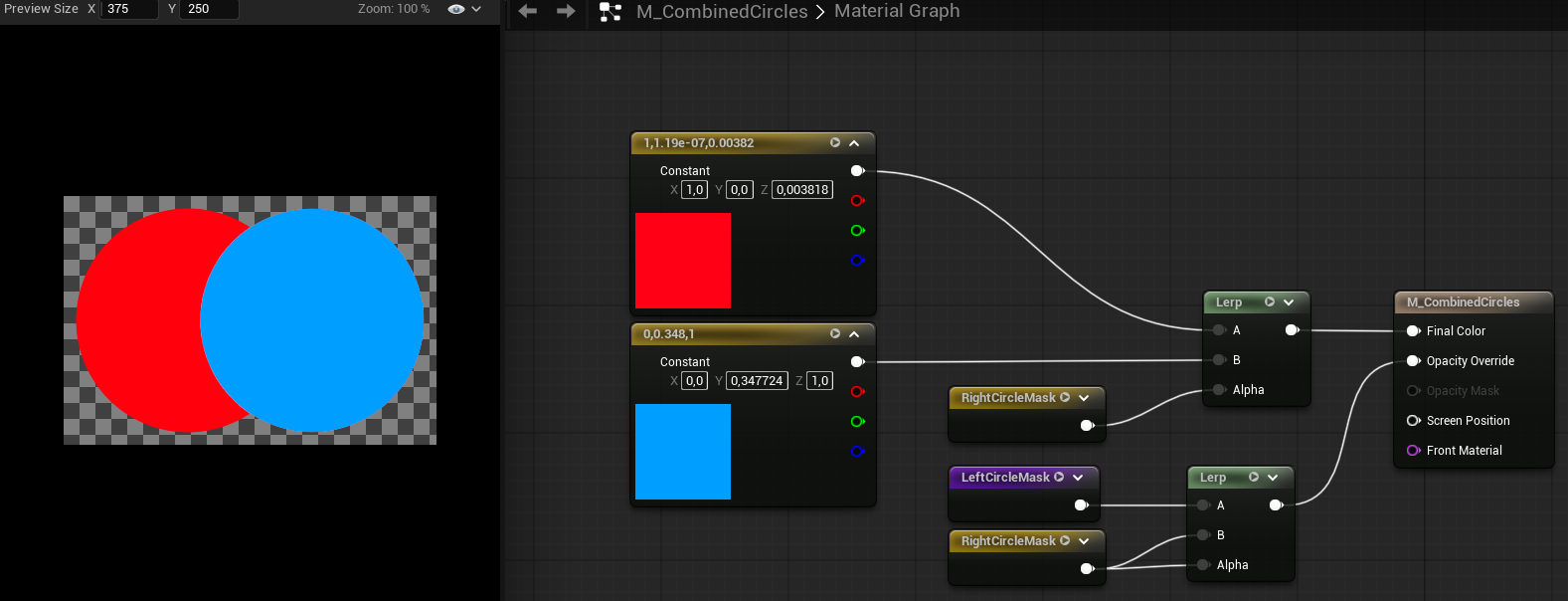
Combine the background and icon in one material
Combining the layers directly incorporates the benefits of the precombined setup and the layered setup into one.
The layout get easier, as we only need one image for the combined layers, which also makes it easier to reuse the element in an other widget.
Changing the opacity does not suffer from the color shift issue, as the effect can be applied uniformly to the whole image.
And we still have separate access to the individual layers, to change colors, scale or whatever else we desire.
But all this flexibility comes at a cost of increased setup complexity.